Introduction
Have you ever watched a video online and felt the volume was simply too low, even with your device volume set to 100%?
I faced this problem frequently while watching tutorials, attending online meetings, and streaming content. Instead of relying on third-party software, I decided to build my own Chrome extension that could boost audio directly inside the browser.
In this article, I'll walk through how I created Volume Booster Max, implemented audio amplification using the Web Audio API, and published it on the Chrome Web Store.
##What I Wanted to Build
My goal was simple:
- Increase audio volume beyond normal browser limits
- Allow users to control volume per tab
- Keep the extension lightweight
- Create a clean and easy-to-use interface
- Publish it publicly on the Chrome Web Store
Tech Stack
The extension was built using:
- HTML
- CSS
- JavaScript
- Chrome Extension Manifest V3
- Web Audio API
- Chrome Tabs API
No frameworks were used because I wanted the extension to remain lightweight and fast.
Step 1: Creating the Extension Structure
I started by creating a project folder with the following structure:
volume-booster-max/
│
├── manifest.json
├── popup.html
├── popup.css
├── popup.js
├── background.js
├── content.js
├── icons/
The most important file is manifest.json, which tells Chrome how the extension works.
Example:
{
  "manifest_version": 3,
  "name": "Volume Booster Max",
  "version": "1.0",
  "description": "Boost browser audio up to 600%",
  "permissions": ["activeTab", "scripting"],
  "action": {
    "default_popup": "popup.html"
  }
}
Step 2: Building the User Interface
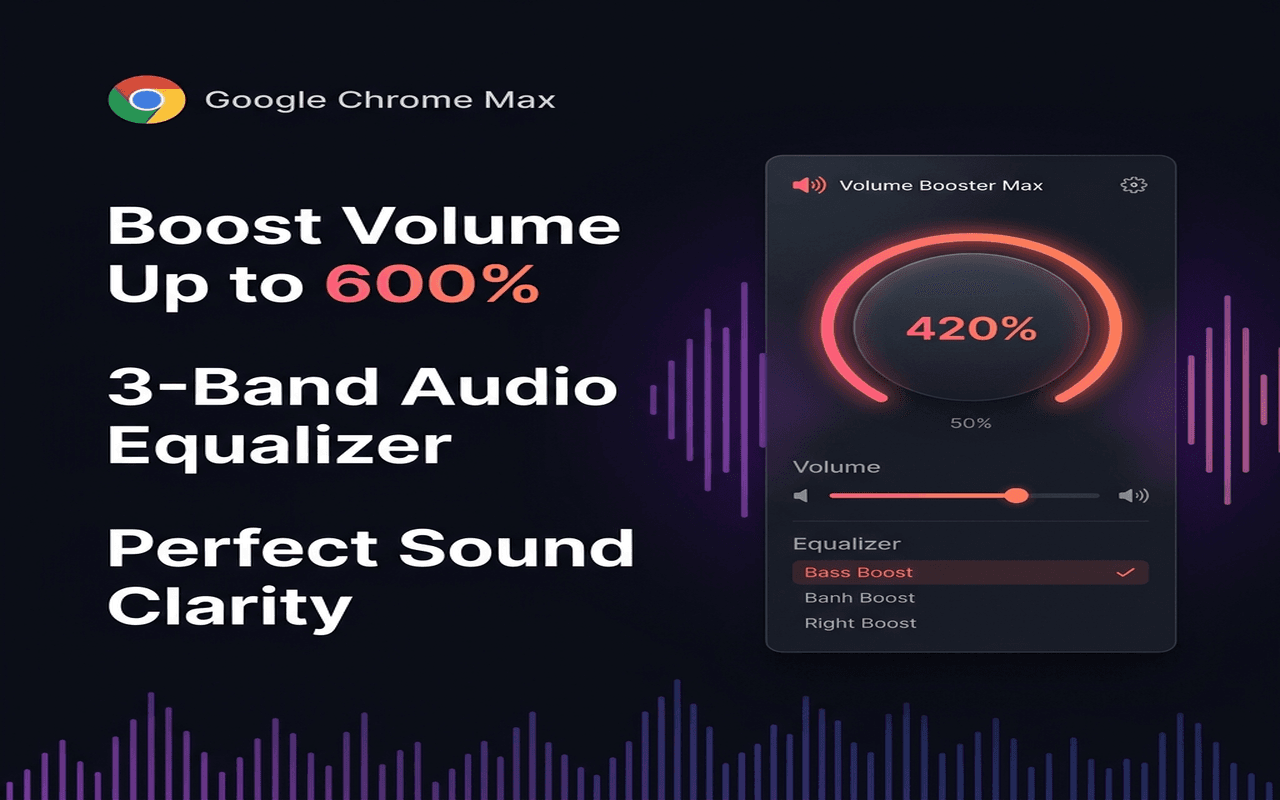
Next, I created a simple popup interface.
The popup includes:
- Volume slider
- Percentage display
- Enable/Disable button
- Audio preset options
Example UI:
<input type="range" min="100" max="600" value="100">
<span>100%</span>
The goal was to make volume control intuitive so users could adjust audio with a single click.
Step 3: Using the Web Audio API
The Web Audio API is what makes volume boosting possible.
The basic idea:
- Capture the tab's audio stream.
- Create an Audio Context.
- Connect audio through a GainNode.
- Increase gain above normal levels.
Example:
const audioContext = new AudioContext();

const gainNode = audioContext.createGain();

gainNode.gain.value = 3.0;
A gain value of:
- 1.0 = Normal volume
- 2.0 = 200%
- 3.0 = 300%
- 6.0 = 600%
This allowed me to amplify sound beyond the browser's default volume.
Step 4: Adding Real-Time Controls
The next challenge was making volume changes happen instantly.
I connected the slider value to the GainNode.
Example:
slider.addEventListener("input", (e) => {
    gainNode.gain.value = e.target.value / 100;
});
Now users could drag the slider and hear volume changes in real time.
Step 5: Managing Browser Tabs
I wanted each tab to have its own volume settings.
Using Chrome's Tabs API, the extension can identify the active tab and apply audio controls independently.
Benefits:
- Different volume levels for different tabs
- Better user experience
- No impact on system-wide audio
Step 6: Testing the Extension
Before publishing, I tested the extension extensively.
Testing included:
- YouTube videos
- Spotify Web Player
- Online meetings
- Educational websites
- News websites
I checked:
- Audio quality
- Performance
- Memory usage
- Volume stability
- Browser compatibility
This helped identify edge cases and improve reliability.
Step 7: Creating Store Assets
The Chrome Web Store requires several graphical assets.
I prepared:
- Extension icon
- Store icon
- Screenshots
- Promotional graphics
Tools used:
- Canva
- Figma
Good screenshots are important because they significantly improve conversion rates.
Step 8: Preparing the Store Listing
I wrote:
Title
Volume Booster Max
Summary
Amplify sound and boost volume up to 600% in any browser tab with custom audio presets.
Description
A detailed explanation of:
- Features
- Benefits
- Use cases
- Privacy practices
I also included keywords related to:
- Volume booster
- Audio enhancer
- Sound amplifier
- Browser audio control
Step 9: Privacy Compliance
Chrome now requires developers to clearly explain how user data is handled.
For my extension:
- No personal data collected
- No audio recordings stored
- No tracking
- Audio processing occurs locally
I created a privacy policy page explaining this clearly.
Step 10: Publishing to the Chrome Web Store
After completing development and testing:
Create ZIP Package
zip -r volume-booster-max.zip .
Upload Extension
- Open Chrome Web Store Developer Dashboard.
- Upload ZIP package.
- Complete Store Listing.
- Add screenshots.
- Add privacy information.
- Submit for review.
The review process typically takes a few days depending on the extension category and compliance requirements.
Challenges I Faced
Audio Distortion
Very high gain values can cause distortion.
Solution:
- Added volume limits.
- Optimized gain calculations.
Browser Restrictions
Modern browsers have security limitations around audio processing.
Solution:
- Followed Manifest V3 guidelines.
- Requested only necessary permissions.
User Experience
Finding the right balance between functionality and simplicity was important.
I kept the interface minimal while still providing advanced controls.
What I Learned
Building a Chrome extension taught me:
- How browser extensions work internally
- Using the Web Audio API
- Managing browser permissions
- Chrome Web Store publishing requirements
- Designing user-friendly browser tools
Most importantly, I learned that solving a small everyday problem can turn into a useful product that helps thousands of users.
Conclusion
Creating Volume Booster Max was an enjoyable project that combined web development, browser APIs, and product design. From the initial idea to Chrome Web Store publication, the entire process provided valuable experience in extension development.
If you're interested in browser development, building a Chrome extension is one of the best projects you can start with. The learning curve is manageable, and you can create something genuinely useful in a short amount of time.
Thank you for reading. If you're building your own Chrome extension, I hope this guide helps you get started.